How to Clear Downloads Folder Automatically in Windows 10
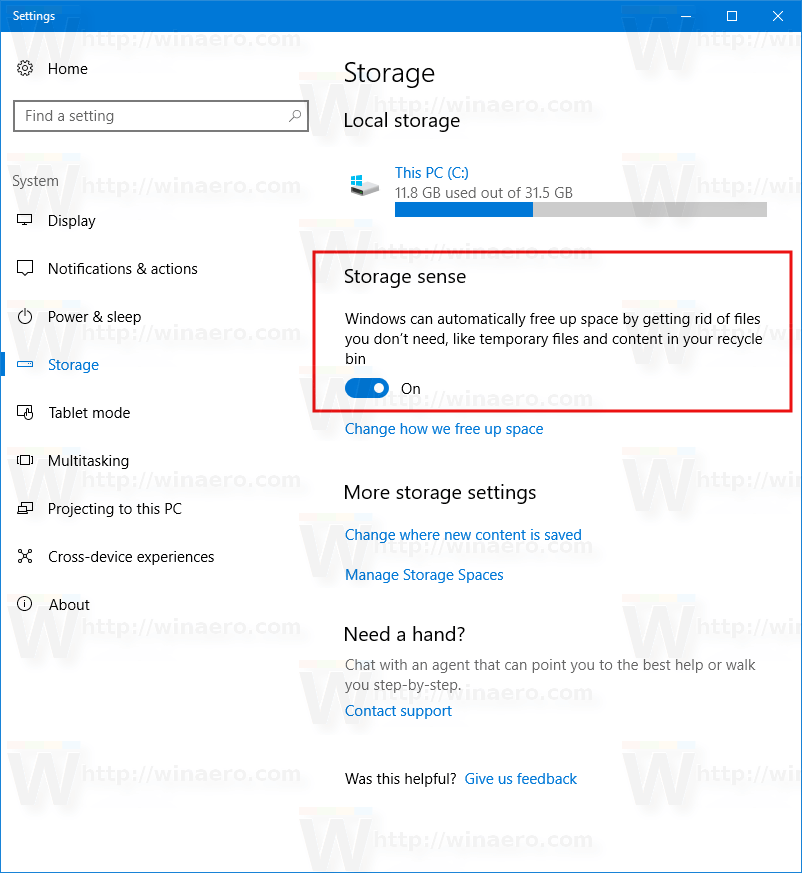
To clear temporary files automatically in Windows 10, you need to enable the new option. Open Settings and go to System -> Storage. There, you will find the option named "Storage Sense". Enable it.
Next, click the link "Change how we free up space" under the switch.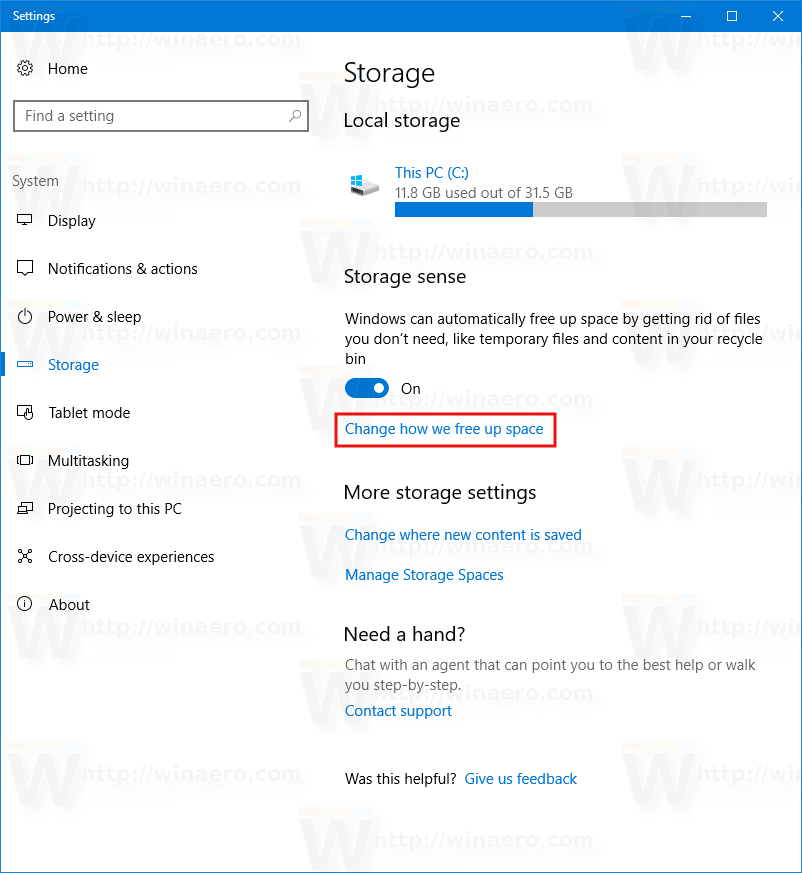
The related page will be opened: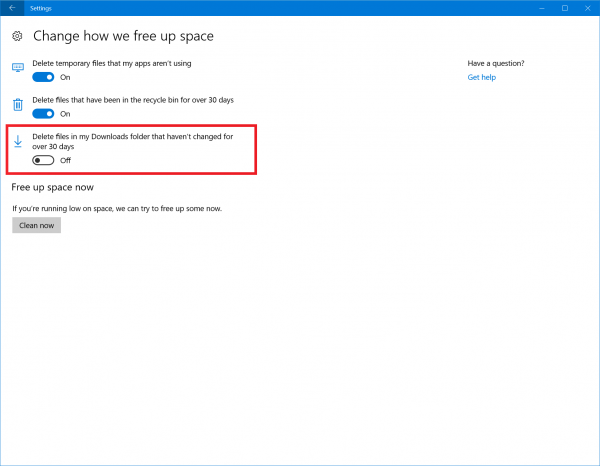
There, you will see a number of options. The one we need is Delete files in my Downloads folder that haven't changed for over 30 days.
Files stored in the Downloads folder for more than 30 days will be deleted for example as part of this cleanup.
It is a good idea to keep this turned on. The Downloads directory continues to store old files you may not need any more and fills your disk drive with junk. When this option is enabled, Windows will delete them automatically and keep your drive clean besides saving your disk space.
There are more ways to clean up your disk drive automatically, which can be used in Windows 10. Check out these articles:
- Clear Temp Directory on Startup with Disk Cleanup. It explains how to clean up the temp directory automatically in Windows 10 using the built-in Disk Cleanup tool (cleanmgr.exe).
- Clean up temp directory automatically in Windows 10. It shows how to clean up temporary files with a simple batch file which cleans your Temp folder every time you start your PC.
- Empty Recycle Bin automatically in Windows 10
The native ability to remove old files from the Downloads folder automatically is one of the best improvements to the built-in maintenance tools in Windows 10.
We hope Microsoft extends this to clean up Windows Update related files too in the future such as files superseded by newer versions and downloaded updates in the Software Distribution folder.
Comments
Post a Comment