Windows 11 Install and upgrade bypass Processor, TPM, and Secure
Windows 11 Install and upgrade
bypass Processor, TPM, and Secure
1. Download Windows 11 ISO from Miscosoft
2. Download Rufus and create Windows 11 install USB with no TPM and Secure Boot options.
3. Boot and install Windows 11 from the USB.
Bypass TPM and other requirements for Update from within Windows
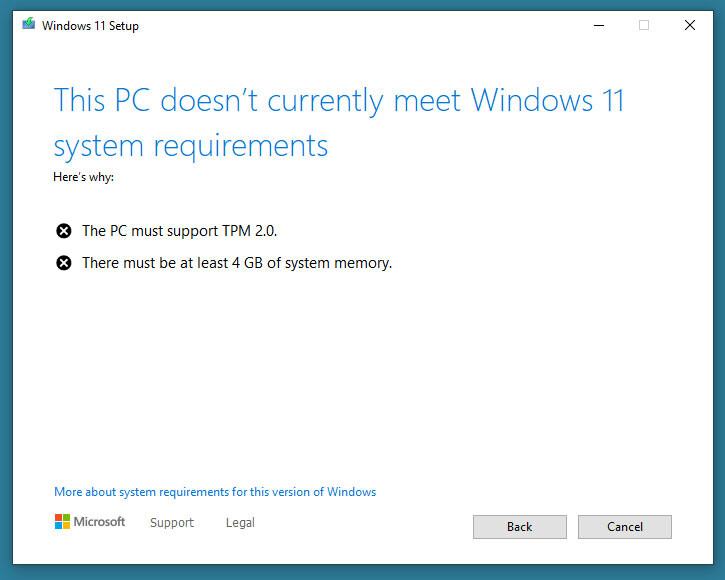
Start the Windows 11 update software, click "Change how setup downloads updates" and select "not right now", or disconnect from the Internet before pressing "Next". The reason is that there's now a new version of the updater that disables the "back" button on the "Unsupported Hardware" screen. Click "Next", after some checking, a screen "This PC doesn't currently meet Windows 11 system requirements" appears. Now open the folder "C:\$WINDOWS.~BT\Sources" and look for the file "appraiserres.dll", delete the file. Make sure to delete the correct file, there are several "appraiser" files in that folder.
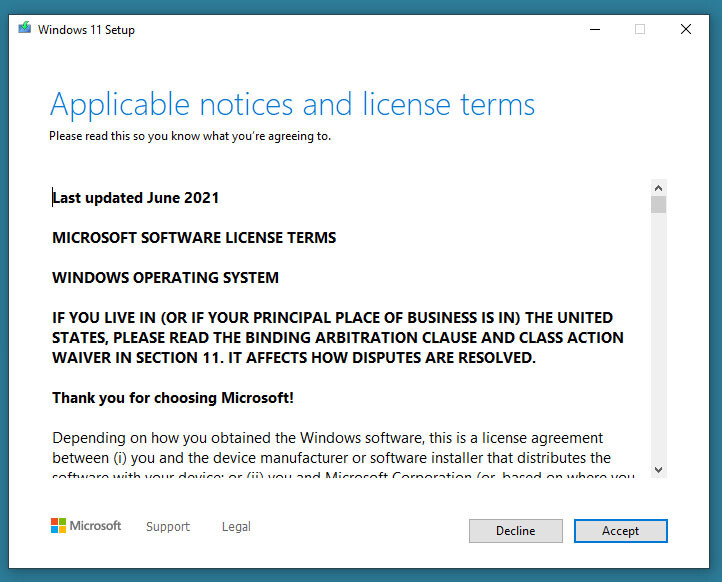
 Return to the Windows 11 updater (no need to restart it), click "back", and "next", done.

Comments
Post a Comment