Xpenology DSM 7
7.x Loaders and Platforms as of 06-June-2022
| Options Ranked | 1a | 1b | 2a | 2b | 2c | 3a | 3b |
|---|---|---|---|---|---|---|---|
| DSM Platform | DS918+ | DS3622xs+ | DS920+ | DS1621+ | DS3617xs | DVA3221 | DS3615xs |
| Architecture | apollolake | broadwellnk | geminilake | v1000 | broadwell | denverton | bromolow |
| DSM Versions | 7.0.1-7.1.0-42661 | 7.0.1-7.1.0-42661 | 7.0.1-7.1.0-42661 | 7.0.1-7.1.0-42661 | 7.0.1-7.1.0-42661 | 7.0.1-7.1.0-42661 | 7.0.1-7.1.0-42661 |
| Loader | TCRP 0.8 | TCRP 0.8 | TCRP 0.8 | TCRP 0.8 | TCRP 0.8 | TCRP 0.8 | TCRP 0.8 |
| Drive Slot Mapping | sataportmap/ diskidxmap | sataportmap/ diskidxmap | device tree | device tree | sataportmap/ diskidxmap | sataportmap/ diskidxmap | sataportmap/ diskidxmap |
| QuickSync Transcoding | Yes | No | Yes | No | No | No | No |
| NVMe Cache Support | Yes | Yes | Yes | Yes | Yes (as of 7.0) | Yes | No |
| RAIDF1 Support | No | Yes | No | No | Yes | No | Yes |
| Oldest CPU Supported | Haswell * | any x86-64 | Haswell ** | any x86-64 | any x86-64 | Haswell * | any x86-64 |
| Max CPU Threads | 8 | 24 | 8 | 16 | 24 (as of 7.0) | 16 | 16 |
| Key Note | currently best for most users | best for very large installs | see slot mapping topic below | AMD Ryzen, see slot mapping topic | obsolete use DS3622xs+ | AI/Deep Learning nVIDIA GPU | obsolete use DS3622xs+ |
Step 1. Choose a DSM Platform/Architecture
Evaluate your intended NAS hardware and your the intended use of DSM, and select a platform that best meets your needs. Reference information here: https://xpenology.com/forum/topic/61634-dsm-7x-loaders-and-platforms/
Write down the selected platform (e.g. DS918+), the corresponding architecture (e.g. apollolake) and whether the platform uses SataPortMap/DiskIdxMap or Device Tree for slot mapping. This information will be needed later.
Now, make sure the NAS hardware is compatible, and prepare it correctly:
- x86-64-compatible CPU with two cores or more
- Each platform have maximum threads support! Any threads in excess will be ignored
- For certain platforms, Intel CPUs must be 4th generation “Haswell” or newer with FMA3 instruction set
The corresponding AMD CPU architecture is “Piledriver” or newer - AMD-based systems may require deactivation of the C1E option in the BIOS
- 2GB of RAM or more
- 2GB or larger USB flash drive
- Configure the BIOS to boot from the USB flash drive ONLY
- SATA disk controllers are preferred, but SCSI/SAS are compatible
- IMPORTANT: All SATA controllers must be configured to AHCI mode
- SATA controllers with port multipliers are not compatible
- ATA controllers are not compatible (disable embedded ATA in BIOS if possible)
- At least one SATA/SCSI/SAS drive (HDD or SSD), minimum size 21GB
- IMPORTANT: Enable SATA port hotplug on each disk port, if hotplug is supported by the BIOS/controller
- IMPORTANT: Disable M.2 SATA ports that are not in use, if supported by the BIOS/controller
- NVMe drives are not usable except as dedicated cache devices
- Host Bus Adapters are not currently compatible with Device Tree platforms
- Install any NVMe drives intended as cache devices
- On Device Tree platforms, NVMe drives must be installed prior to loader installation in order for them to be recognized
Step 2. Download TCRP and Write Image to the USB Flash Drive
The latest pocopico stable loader code is always linked here: https://xpenology.com/forum/topic/7848-links-to-loaders/
Download the tinycore-redpill 7.x loader and save it to your personal computer. Then, open it with a zip manager to show the boot images:
tinycore-redpill.vX.X.X.img.gz (for BIOS/CSM/Legacy boot from USB flash drive)
tinycore-redpill-uefi.vX.X.X.img.gz (for UEFI/EFI boot from USB flash drive)
tinycore-redpill.vX.X.X.vmdk.gz (for virtual machine SATABOOT from disk image)
Select the boot image that matches the boot capability of the NAS motherboard. If unsure, choose BIOS/CSM/Legacy boot. Save the gzip file to your personal computer, then open it with a zip archive manager and save the uncompressed version.
Write the uncompressed image to the USB flash drive using Win32DiskImager or other appropriate tool.
The USB flash drive is used to store TinyCore and the RedPill loader that it generates. It is a permanent component of an operational XPEnology system. Do not remove it, even after the DSM installation is complete and the NAS is fully up and running.
Step 3. Boot into TinyCore and Complete Pre-Configuration Updates
Start your NAS with the USB flash drive installed and TinyCore will boot. Then, launch a command-line session with either of these methods:
- Click the Terminal icon at the bottom right of the TinyCore desktop to launch a console window

- Use a ssh client (e.g. PuTTY) on your computer to connect a network-based console
- Consult your DHCP server/router for the IP address assignment (TinyCore's host name is "box")
- Login credentials: tc/P@ssw0rd

When the Linux command line prompt ($) is displayed, update the TCRP script
./rploader.sh update
Checking Internet Access -> OK
Checking if a newer version exists -> There is a newer version on the repo should we use that ? [yY/nN] Y
OK, updating, please re-run after updating
Updating tinycore loader with latest updates
Backing up files to /mnt/sda3//mydata.tgz
Then, update the TCRP support files
./rploader.sh fullupgrade
<downloads snipped>
Current /home/tc size is 114M , try to keep it less than 1GB as it might not fit into your image
Should i update the sda with your current files [Yy/Nn] Y
Backing up home files to sda : Backing up files to /mnt/sda3//mydata.tgz
Finally, choose a DSM release number
Each DSM build as provided by Synology has a release number. You can display the combinations of platforms and releases supported by TCRP by just running the script with no arguments
./rploader.sh
<command help snipped>
Available platform versions:
----------------------------------------------------------------------------------------
apollolake-7.0-41890
apollolake-7.0.1-42218
apollolake-7.1.0-42661
broadwell-7.0.1-42218
broadwell-7.1.0-42661
broadwellnk-7.0.1-42218
broadwellnk-7.1.0-42661
bromolow-7.0.1-42218
bromolow-7.1.0-42661
denverton-7.0.1-42218
denverton-7.1.0-42661
geminilake-7.0.1-42218
geminilake-7.1.0-42661
v1000-7.0.1-42218
v1000-7.1.0-42661
Step 4. Configure System-Specific Parameters
Custom system parameters are stored in the user_config.json file. This can be manually edited, or TCRP can help determine appropriate values for the hardware.
- USB flash drive VID/PID: TCRP can query the USB flash drive for the hardware vid/pid values that DSM uses to identify the loader during bootup
./rploader.sh identifyusb Found: Superdisk Flash SerialNumber: 123456 Vendor ID: 0x1234 Product ID: 0x0001 Should i update the user_config.json with these values ? [Yy/Nn] Y - Serial number/MAC: TCRP can automatically generate a serial number for the platform selected in step 1. Additionally, it will generate a random MAC address for the NAS network card. If you prefer to use the actual hardware MAC address instead, append "realmac" to the command.
Example 1: random MAC address./rploader.sh serialgen DS3622xs+ Serial Number for Model : 20C0SQRLR47QM Mac Address for Model DS3622xs+ : 00:11:32:80:B2:36 Should i update the user_config.json with these values ? [Yy/Nn] Y
Example 2: real MAC address./rploader.sh serialgen DS3622xs+ realmac Serial Number for Model : 2150SQRGS7N5T Mac Address for Model DS3622xs+ : 00:11:32:57:3A:9B Real Mac Address : 00:0C:24:62:3E:3D Notice : realmac option is requested, real mac will be used Should i update the user_config.json with these values ? [Yy/Nn] Y - Drive Slot Mapping: TCRP can try to determine how to map the NAS disk controller ports to DSM slots. If the chosen platform uses SataPortMap/DiskIdxMap for port mapping, the command below will do this. If it uses Device Tree for slot mapping, the command may be skipped, as the Device Tree is configured automatically during the loader build.
./rploader.sh satamap
Found "02:02.0 SATA AHCI controller"
Detected 4 ports/2 drives. Override # of ports or ENTER to accept: <4>

Recommended settings:
SataPortMap=4
DiskIdxMap=00

Should I update the user_config with these values ? [Yy/Nn] Y
If the port count is not what you expect, it may be due to the motherboard design servicing physical ports with multiple controllers, or because of M.2 SATA slot support. If necessary, the port count can be overridden with whatever you like. NOTE: If you see a WARNING message, it is certain that either some of your drives are inaccessible or the DSM install will encounter problems. Evaluate and investigate the issue. The satamap command can be rerun as many times as needed to understand the system.
Manual Review: With prior loaders (such as Jun's), the configuration of these parameters was completely manual. There is no single setup that works for all hardware. Even after using the tools above, please review and verify the parameters, understand what they do, and manually edit if needed.
Whatever changes rploader.sh makes to the user_config.json file can be reviewed by displaying the file contentscat user_config.json
and overridden by editing the filevi user_config.json
You can also add a simpler editor, nanotce-load -iw nano nano user_config.json
And there is also a graphical editor accessible from the TinyCore desktop

Step 5. Optional: Manually Add Driver Extensions
While TCRP can automatically add drivers based on the detected NAS hardware, it isn’t foolproof. You might want to build a loader for a device you don’t actually have yet. And there are features that are "opt-in" only. So, a process exists to manually add drivers and other functionality. Extensions are stored in repositories hosted on the web. All the extensions in the main repository are viewable here: https://github.com/pocopico/rp-ext
To list all the extensions recommended by TCRP's hardware detection algorithm, use
./rploader.sh listmods <architecture>-<version>-<DSMreleasenumber>
./rploader.sh listmods apollolake-7.1.0-42661
To add a specific extension, choose from the list and reference the architecture from Step 1.
./rploader.sh ext <architecture>-<version>-<DSMreleasenumber> <extensionurl>
./rploader.sh ext apollolake-7.1.0-42661 add https://raw.githubusercontent.com/pocopico/rp-ext/master/redpill-acpid/rpext-index.json
./rploader.sh ext denverton-7.1.0-42661 add https://raw.githubusercontent.com/pocopico/rp-ext/master/v9fs/rpext-index.json
The examples illustrate adding ACPI and VIRTIO support. These are often chosen enhancements to a basic installation.
Step 6. Build the Loader
When all preparation steps are complete, build the loader using the command structure
./rploader.sh build <architecture>-<version>-<DSMreleasenumber>
Example #1: DS3622xs+, auto detect hardware
./rploader.sh build broadwellnk-7.1.0-42661
Example #2: DS918+, use preselected drivers
./rploader.sh build apollolake-7.1.0-42661 manual
TCRP will download resources from the Internet to complete the complex process of the loader build. When finished, it will write it to the USB flash drive and add new items to the GRUB boot menu. Review the output for any errors and make corrections if necessary.
Step 7. Optional Backup Tasks
Save the TinyCore configuration state as the default, so that the next boot of TInyCore starts with all your settings
./rploader.sh backup
Back up the generated RedPill loader partition to available space on the USB flash drive
./rploader.sh backuploader
Step 8: Restart and Boot DSM Using the Grub USB Option
Cleanly shutdown and reboot with the TinyCore command
exitcheck.sh reboot
First, the GRUB Menu is displayed. If necessary, use the arrow keys to ensure that USB is selected and press ENTER.
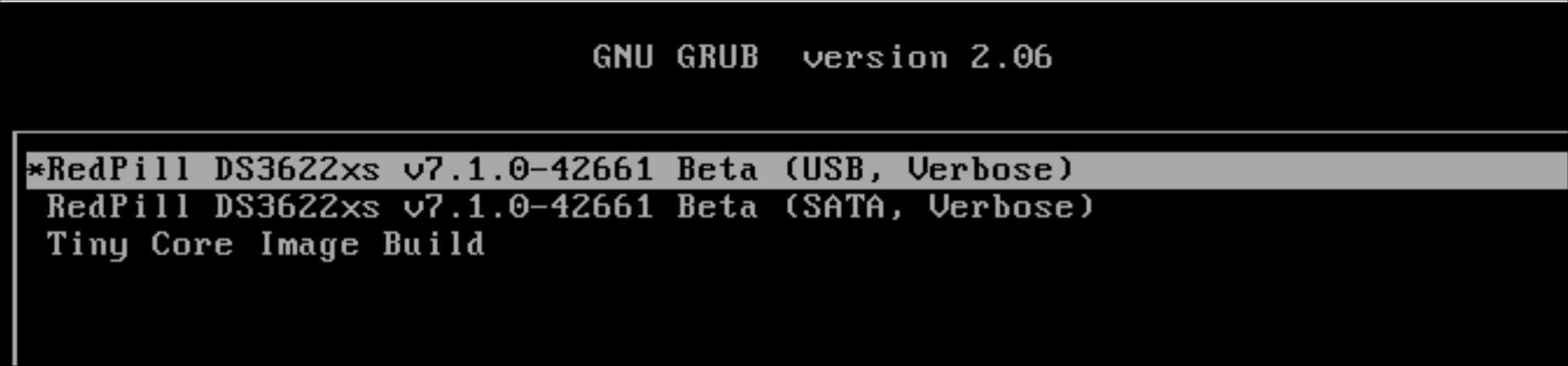
The loader will show some initialization information and silently boot DSM. Nothing else will be displayed unless a serial console is attached (see the Troubleshooting section below). Wait a few minutes, then launch either https://find.synology.com or the Synology Assistant desktop utility. If the loader is working properly, a new "SynologyNAS" will be displayed as Not installed (for a new build) or the name of your existing Migratable NAS (if upgrading from a previous version).

Use your browser to connect to the NAS.

If "Something went wrong" is displayed, jump to the Basic Troubleshooting section below.
Otherwise, browse to the Synology Download Center and download the DSM install PAT file that matches the platform and release number specified in the loader build. Do not use the PAT file stored in TinyCore. It has modifications that are incompatible with DSM installation. However, its name may help identify the correct PAT file to download below.
There can be several files that appear to be candidates. PAT files marked VirtualDSM will not work. Also there can be patch PAT files with the same numbering. These will not work and will usually be smaller than 50MB. The correct PAT file is 300MB or larger.
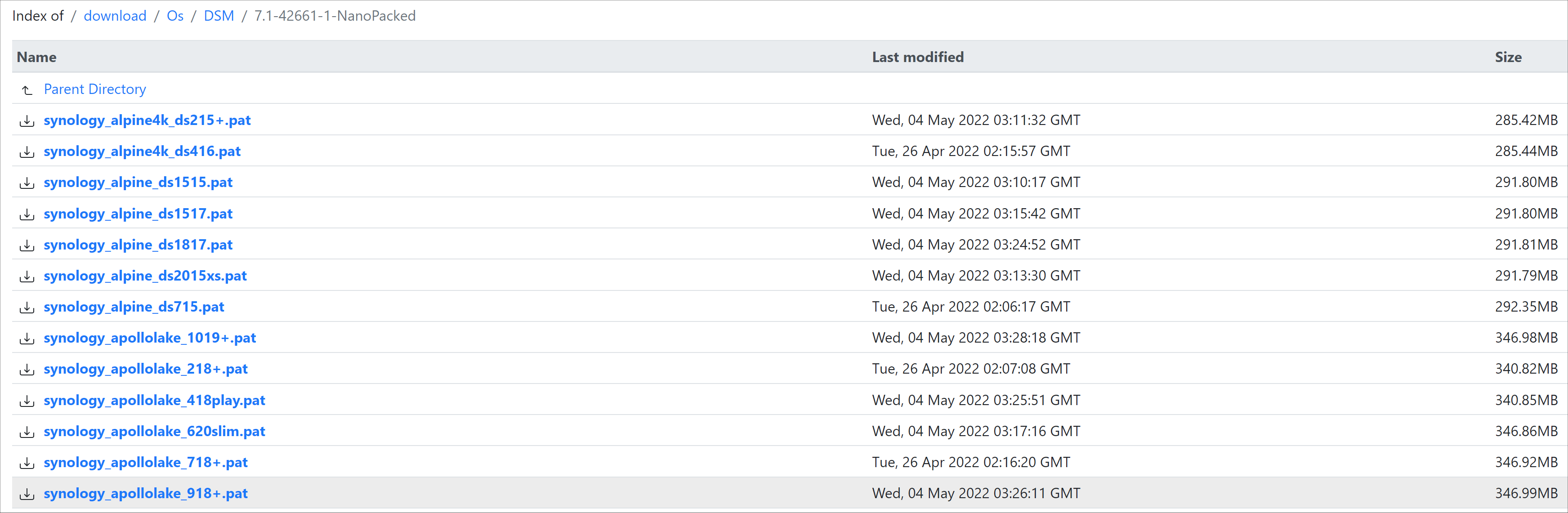
Once the correct DSM PAT file is saved to your personal computer, upload it to the NAS. Follow the prompts to complete the installation.
FOR UPGRADES ONLY: If Synology Assistant shows Not installed, or if prompted to erase the disks during the upgrade, STOP! Some or all of your array disks are not visible to DSM. This must be resolved via troubleshooting and reconfiguration before installing DSM 7.x.
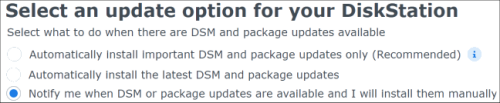
IMPORTANT: During the install, always select DSM manual updates. If a new install completes normally, but then fails after the reboot, it may be that DSM has attempted to auto-update itself with incompatible code.

Comments
Post a Comment