Synology - improve the performance or resolve disconnection issues of iSCSI LUNs
How can I improve the performance or resolve disconnection issues of iSCSI LUNs?
Symptoms
If you encounter the issues below when using iSCSI LUNs on VMware, Microsoft Windows, or other hosts, it might be related to performance issue. We suggest performing a troubleshoot by following the instructions in this article:
- Poor iSCSI LUN performance on the host
- Sudden disconnection from the iSCSI target or connection failure on the host
- Warning of high latency of iSCSI LUN on the host
- Connection timeout notification on the host
- It takes longer than expected to make a connection
- Unstable connection (frequent disconnections)
Resolution
Optimize storage settings
- Reduce the stripe cache size1 if you are using RAID 5, 6, F1, or SHR with more than three drives:
- DSM 7.x: Go to Storage Manager > Storage, select a volume and click
 > Settings > Stripe cache size to select Smaller stripe cache size.
 - DSM 6.x: Go to Storage Manager > Storage Pool, select a storage pool and click Action > Change Settings to select Smaller stripe cache size.
- DSM 7.x: Go to Storage Manager > Storage, select a volume and click
- Make sure all drives in your storage pool are in Healthy status to avoid potential slowdown caused by any drive in Warning/Critical status.
- Avoid high volume usage (e.g., above 90%) because insufficient free space can affect performance.
- Create a dedicated storage pool or volume for LUNs with heavy workloads.
- Enhance performance by using an SSD cache or SSD-based storage pool or volume, especially for applications with high random I/O requests.
- Switch to a file-level Btrfs LUN for better performance if you are using a block-level LUN or a Thin Provisioned ext4 LUN.
- Use a Thick Provisioned LUN instead of a Thin Provisioned LUN.
- Schedule high I/O tasks (e.g., backups, snapshot retention) at different times to minimize performance impact caused by simultaneous excessive I/O consumption.
Optimize network settings
- Create a dedicated iSCSI network that achieves better performance by isolating it from other network traffic or establishing a direct connection between the iSCSI host and Synology NAS.
- Configure network binding settings:
- DSM 7.x: Go to SAN Manager > iSCSI, select a target and click Edit > Network Binding. Choose Only selected interfaces and select only the network interface to use for your iSCSI services.
- DSM 6.x: Go to iSCSI Manager > Target, select a target and click Action > Edit > Network Binding. Choose Only selected interfaces and select only the network interface to use for your iSCSI services.
Optimize iSCSI host settings
For host servers on Windows, refer to this article to optimize your iSCSI connection.
For host servers on VMware, follow the tips below:
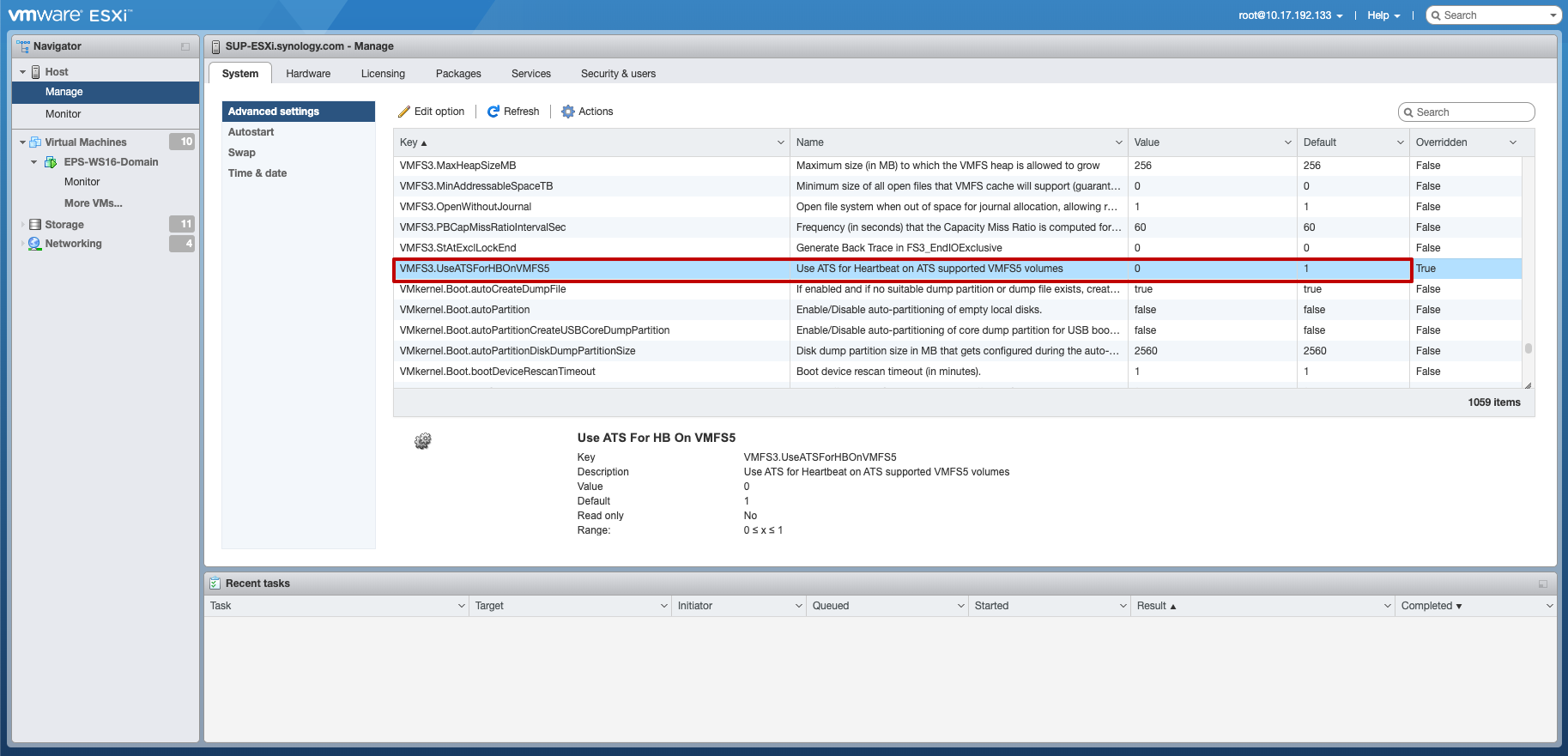
- Make sure you have disabled ATS heartbeat by changing the value from 1 to 0. For more information, refer to the VMware Knowledge Base article.
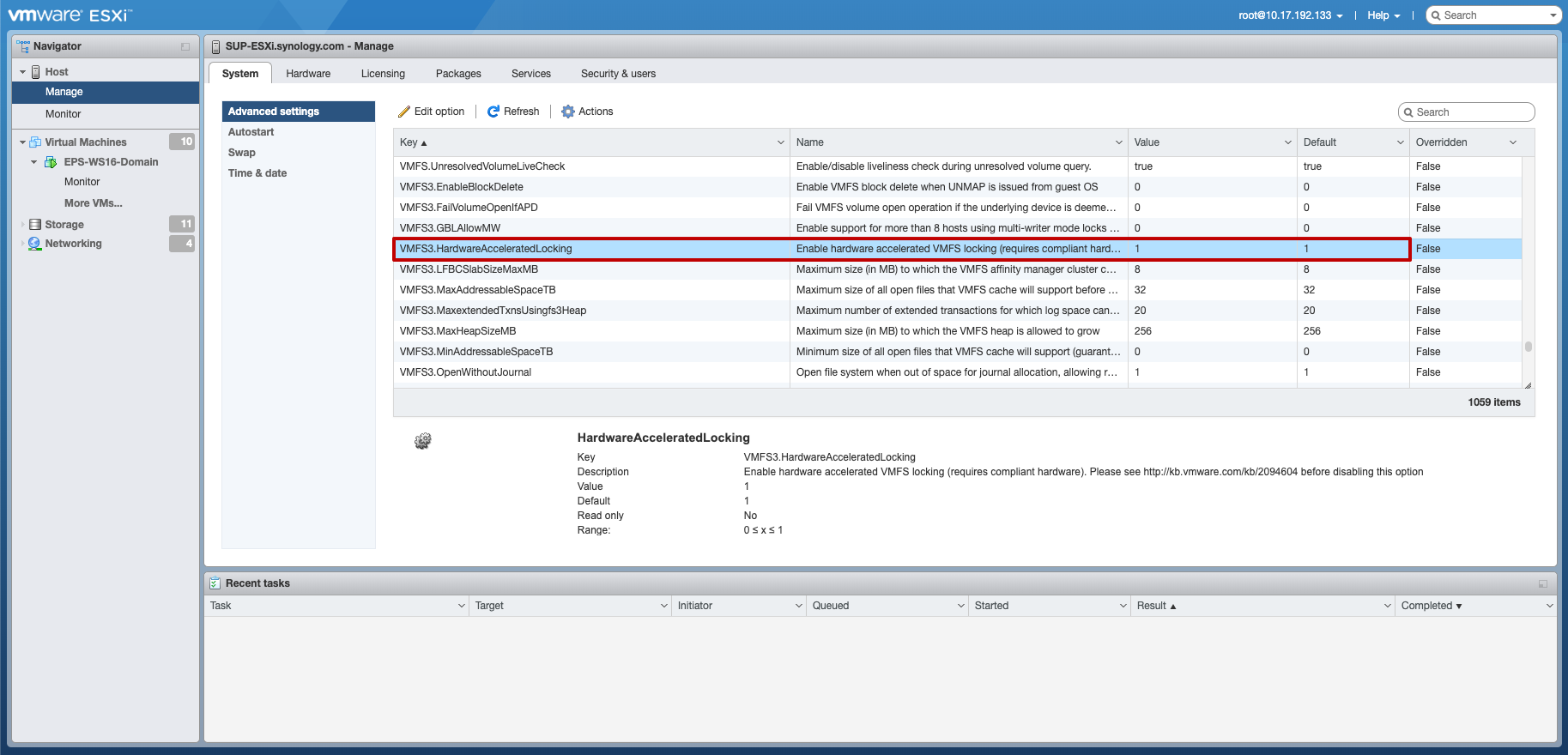
- Make sure the value of HardwareAcceleratedLocking is 1 if the Hardware-assisted locking advanced feature is enabled for your iSCSI LUN.
- Follow the steps below for better iSCSI connection stability:
- Log in to the vSphere Client and go to the host.
- On the Configure tab, click Storage > Storage Adapters. Select the adapter, whose name should be vmhba# (e.g., vmhba1).
- Click Advanced > Edit... and set the following configuration:
- LoginTimeout: 60
- NoopTimeout: 30
- DelayedAck: false
Comments
Post a Comment