Support Entry Mode for ShoreTel
Support Entry Mode for ShoreTel
https://workendtech.com/2013/01/10/support-entry-mode-shoretel/
I’ve heard Support Entry Mode referred to as several different terms. Technician Mode, Maintenance Mode, Special Mode, and a few others, sometimes by TAC themselves. It’s really a special way of logging into ShoreTel Director so that you can change several hidden fields and it’s not obvious how to use it.
How To Access Support Entry Mode In ShoreWare Director
Step 1 – Open ShoreWare Director in your web browser. If you’ve integrated your ShoreTel system with Active Directory, you’ll need to click the logoff link up in the top left hand corner of the page.
Step 2 – Once you are at the log in screen, hold down your SHIFT and CTRL keys on your keyboard and click right on the word “User”. Check the graphic below. The highlighted area is where you need to click. Note that your cursor won’t change shape or anything.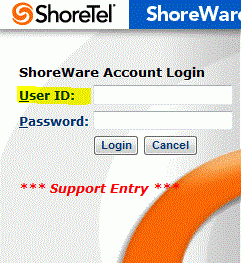
Step 3 – When you see “*** Support Entry ***” show up in red you can log back in. There are two ways to log back in. If you are active directory integrated, just click Active Directory login button on the right and it will put you back in under your own username. The other way is to log in as you would normally with a ShoreTel username and password.
Some Things You Can Do With Support Entry Mode
This part is a work in progress, but I’ll just post what I know.
Change Dialing Rules – One of the hidden fields that comes up is the dialing rules under Trunk Groups. Go click on a trunk group and scroll to the bottom of the page. You’ll see this:

You will see much the same thing under “Sites”. It will change your entire sites Dialing Plan if you change it here.
You can change your dial string with the edit button. I’ll add documentation to this as I come across it. I’ve used it a few times to change how caller ID sends out or to add pauses, custom digits and so forth. Unfortunately, at the moment I don’t have any notes on what I did, as I was in a hurry with TAC the few times I’ve done it. I believe if you’ve gone through Advanced Engineer training they tell you how to do this. I do know you can really mess stuff up if you change this, so copy and paste the string into a backup text file or something before you alter it.
That’s all I know how to do at the moment. If you know something else Support Entry Mode allows, let me know in the contact form or comment below.
Comments
Post a Comment