Windows 10 100% disk usage in Task Manager
Windows 10 100% disk usage in Task ManWindows 10 100% disk usage
Fix 1: Disable SuperFetch
SuperFetch helps to decrease boot time and make must-load programs more efficiently. However, it has been identified as a potential cause of disk performance issues in Windows 8 and later versions of Windows, including Windows 10. Here’s how to stop this service:
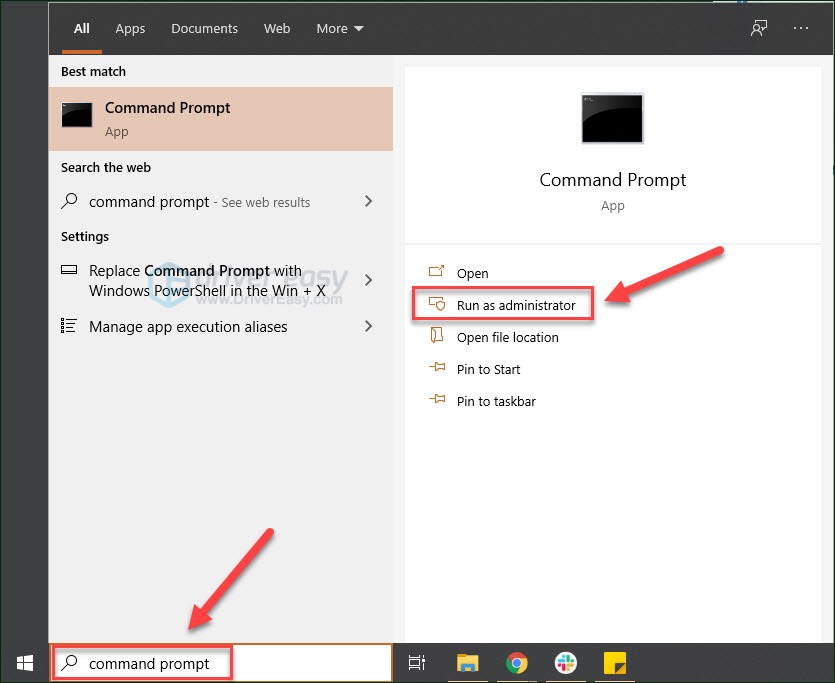
1) On your keyboard, press Windows logo key, type command prompt, then select Run as administrator.
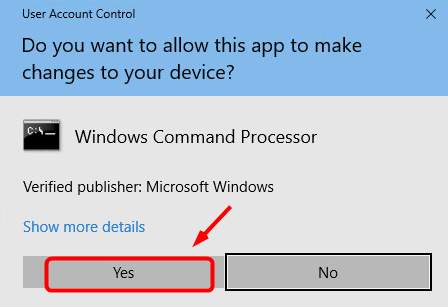
2) Click Yes at the User Account Control prompt.
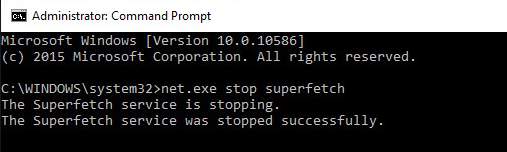
3) The command prompt will once again display. Type in the following command:
net.exe stop superfetch
4) Hit Enter on your keyboard.
5) If the command above isn’t valid, try the following one instead:
net.exe stop sysmain
6) Wait for a few minutes to see if your computer starts performing better. Or check your computer’s disk usage: Type “task manager” in the Windows search bar and select Task Manager, then in the Processes tab, look at the % at the top of the Disk column. If it’s no longer 100%, you’ve fixed the problem!
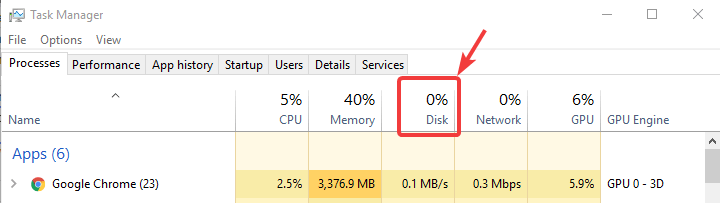
If the 100% disk usage problem persists, try the next method, below.
Comments
Post a Comment