CONFIGURE SHADOWCOPY FOR WINDOWS 10
Windows 10 lack the feature of schedule shadow copy like in windows 7 and server 2008. But you Still can do it with Win32_ShadowCopy class in WMI.
First enable the shadow copy option :
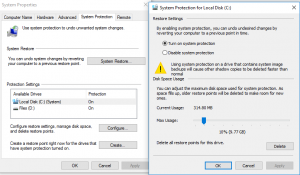
Open Control Panel -> system -> system protection tab ->choose drive letter-> click enable and set the amount of disk space you want to use
The command to run is (for drive c in this example) :
wmic shadowcopy call create Volume=c:\
to test this run on command prompt as administrator and check for creation of shadow copy
Create Scheduled Task:
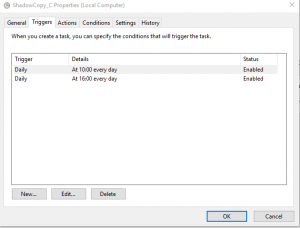
open Task Schedule and create task -> name it ShadowCopy_C (or any other name you want) ->select the triggers, once it was at 07:00 and 12:00 every day
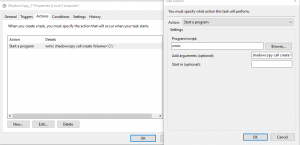
At the action tab write WMIC -> at the arguments -> shadowcopy call create Volume=C:\
Do this for every partition
Good Luck
Comments
Post a Comment